WebXR Browser
VertoXR includes a built-in WebXR browser so you can browse, play, and watch immersive content on the web without installing a separate desktop browser or extension. Your AR glasses act as the WebXR display with head tracking, so 360° video and WebXR experiences feel natural in your glasses.
Overview
The in-app WebXR browser is designed for immersive web content. You can:
- Play WebXR games — browser-based VR and AR games and demos that use the WebXR API
- Watch YouTube 360° videos — panoramic and 360° uploads on YouTube
- Watch VR / 360° videos — other sites that serve 360° or stereoscopic VR video in the browser
Prerequisites
Before using the WebXR browser, ensure you have:
- VertoXR installed (version 0.2.1 or later) with your glasses connected
- A compatible AR glasses device
- Glasses calibrated on a flat surface (required for Game Mode)
Getting started
-
Launch VertoXR and connect your glasses.
-
Calibrate your glasses on a flat surface if you have not already.
-
Start the WebXR browser and checkout WebXR Samples
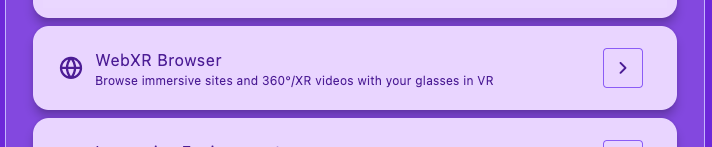
Once the browser is running, content that supports WebXR or 360° playback can use your glasses for immersive viewing.
Play WebXR games/360 Videos
Many WebXR experiences run directly in the browser. After opening the WebXR browser:
-
Go to a WebXR-enabled site or game.
-
Start the experience and choose Enter VR / Enter XR (wording varies by site).
-
Use head movement to look around;
-
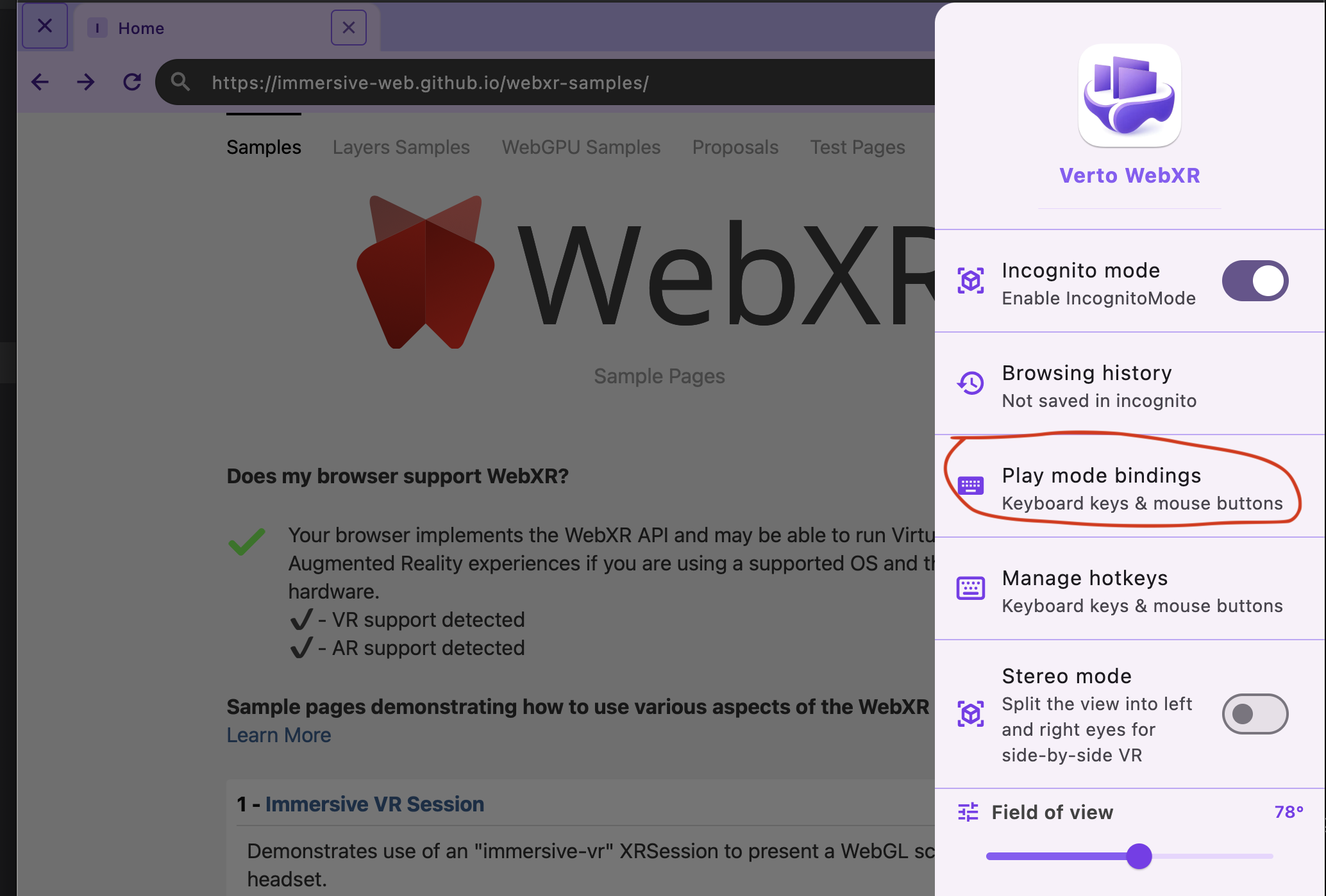
Use your mouse as Xr controller, you can learn about the mouse bindings from the
Play mode bindingsusing settings icon -
Customize the mouse/keyboard controller emulation from these bindings
-
You can also use Gamepad as controller
Suggested sites to try
- WebXR Samples — official demos and reference experiences
- Youtube 360 Videos
WebXR games can be demanding. Close other heavy applications on your PC if you notice stutter or low frame rates in the browser.
Watch YouTube 360° videos
YouTube hosts a large library of 360° and immersive uploads. From the WebXR browser:
-
Open YouTube.
-
Search for 360 or open a known 360° video (many titles include “360” or “VR” in the name).
-
Play the video and from app enable
Glasses Gyro emulationfrom top -
Click on this icon again to disable Gyro emulation when done with youtube

Watch VR and 360° videos
Beyond YouTube, many sites serve 360° monoscopic or stereoscopic VR video in the browser.
- Open the video page.
- Start playback and switch to 360°, VR, or cinema mode if the site provides it.
- Look around with your glasses; some players also support fullscreen or VR-specific layouts.
- Spatial Videos will also work on 6dof supported glasses
- Use Mouse/Keyboard or Gamepad to control playback